Template usage
In the following we will show you step by step how to use templates when converting HTML files.
For more information on the FreeMarker template engine, please visit https://freemarker.apache.org/docs/index.html
Prepare the files
Two files are needed for templating. The HTML source file, which specifies the structure and design of the resulting PDF, and the JSON data, which is used to replace variables at various points in the HTML.
Variables from JSON data must be prefixed with the namespace custom for example
${custom.structures.variablenames}
The HTML source file
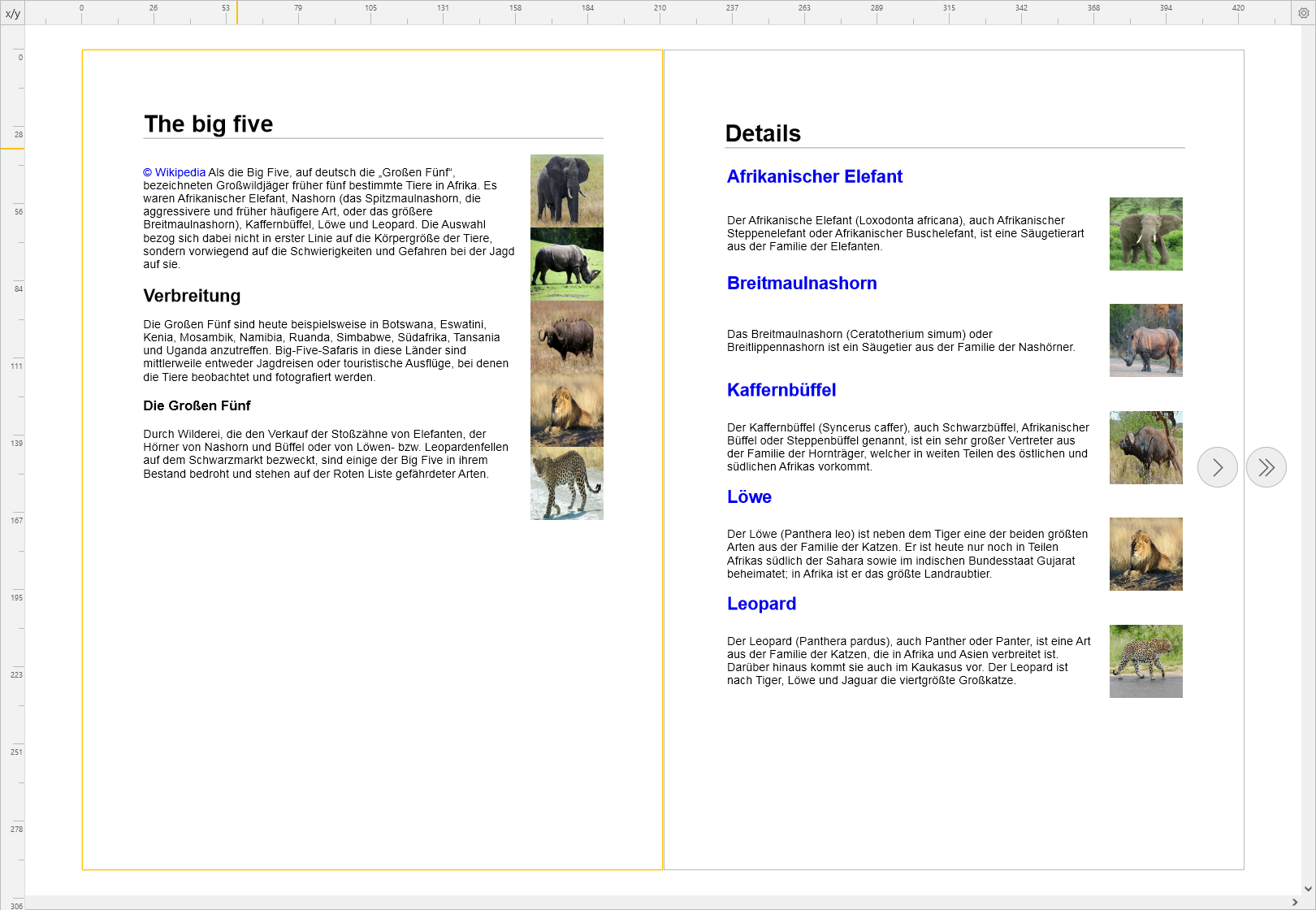
In the following example, the source file provides a structure that will later result in two A4 pages. The first page
consists of static content and images linked from external pages. The second page will consist of dynamic content
filled with variables. Variables are specified in this form ${custom.structures.variablenames}. Also a loop over a
list of content is used to avoid repetitions in the structure.
The JSON file
The JSON data is used to fill the dynamic part of the HTML file. It consists of a data array, which can be looped as mentioned above and repeating variable structures. For images external links are used in this example, but other capabilities of HTML could be used like for example base64 data.
Call via the wsclient
- Java
- TypeScript
- JavaScript
Usage in the portal
The following shows which steps are necessary in the portal to use an HTML template. An HTML source file and a JSON file are used as example files.
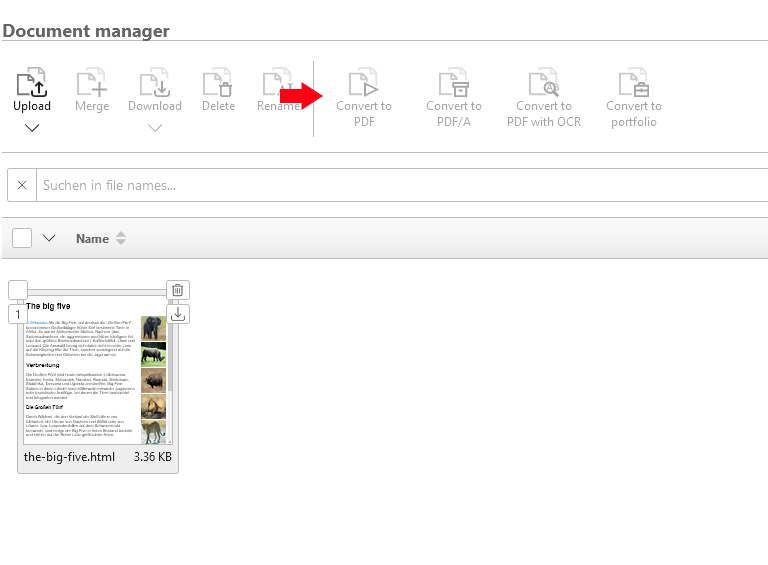
After you have logged in, you can upload the HTML document to the portal. The document will be added to the central document manager of the portal. Select the document and open the Convert to PDF function.
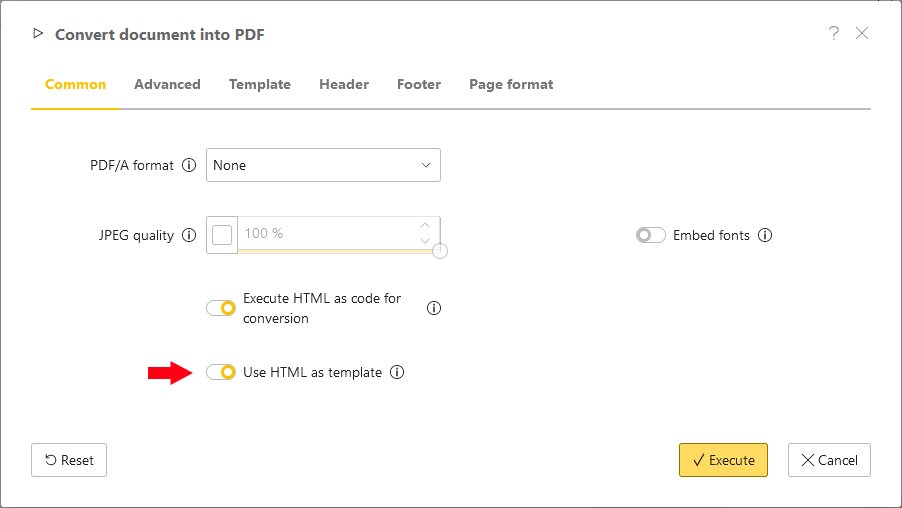
Once the dialog is displayed, activate the option Use HTML as template
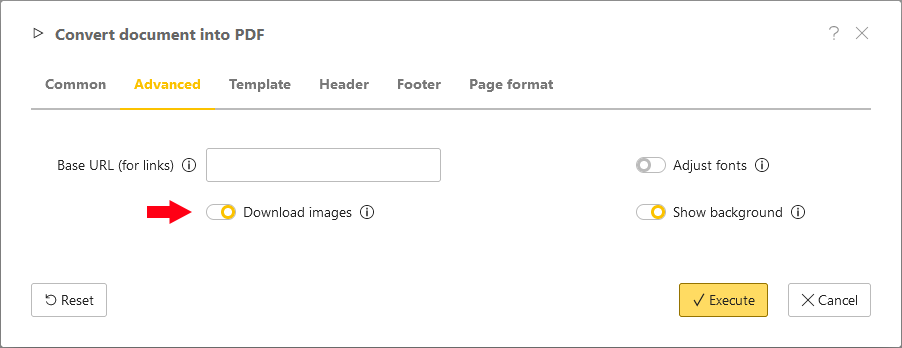
In the Advanced tab, activate the Download images option to add images from external urls to the PDF, which will be used in this example.
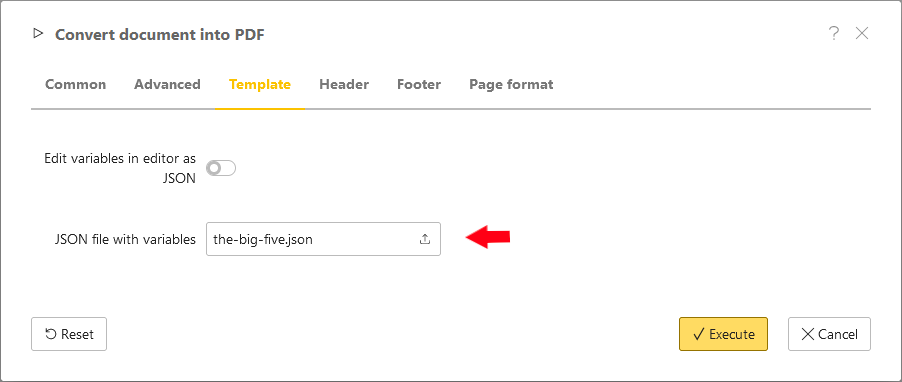
In the last step, switch to the Template tab and upload the JSON file with the template data.
Now the conversion can be started. If you have followed this example, you should now have created a PDF file with two pages and can download it